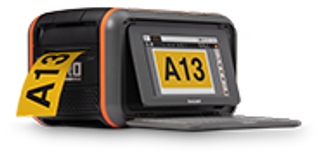
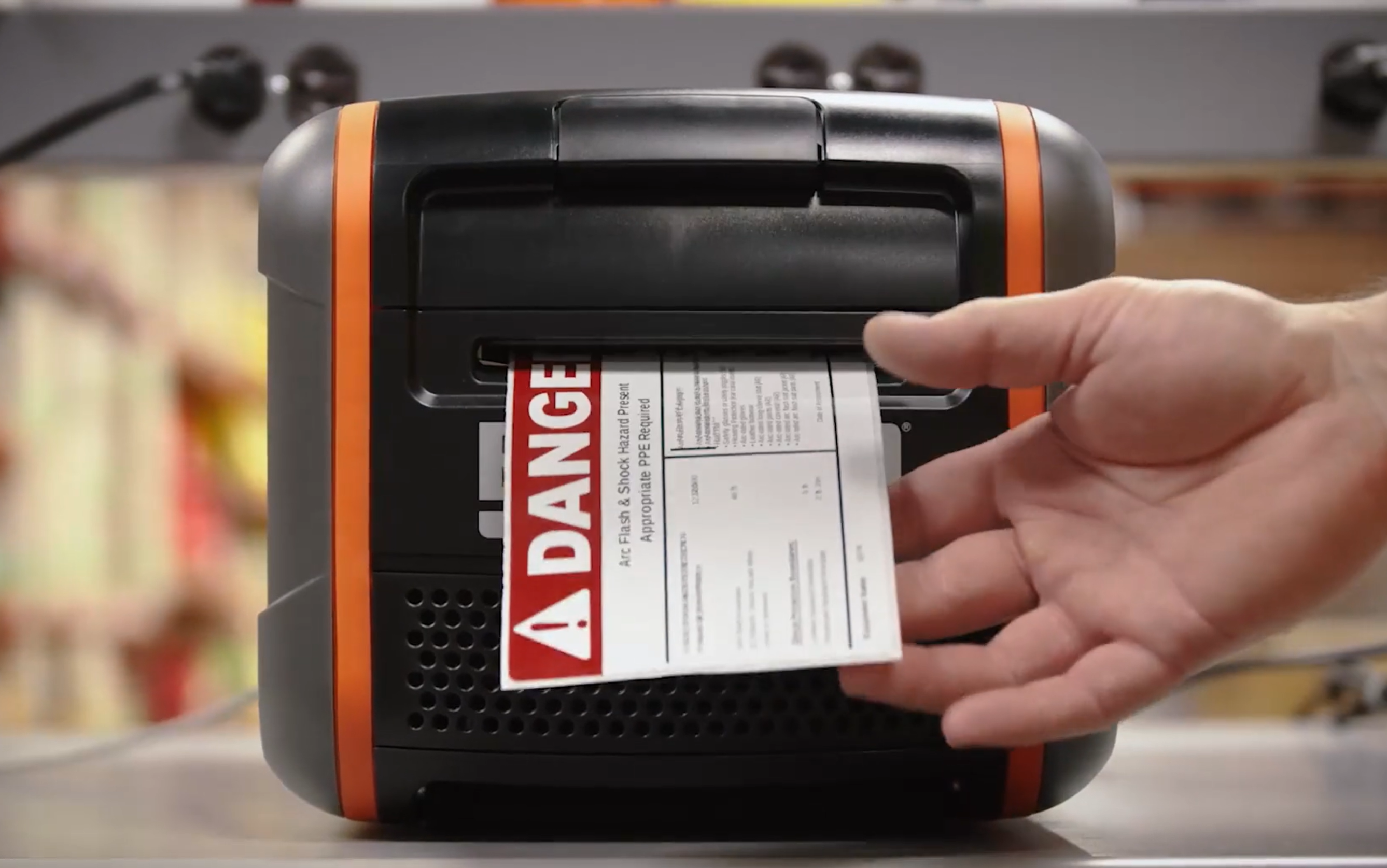
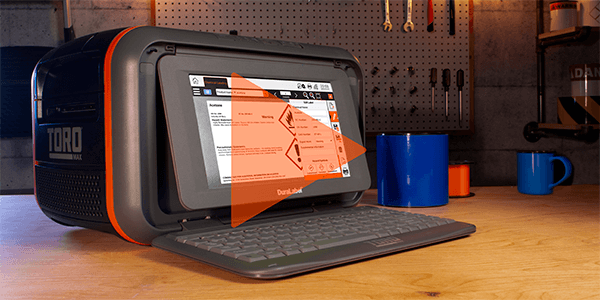
How To Navigate DuraLabel Toro Software
Video Transcription
Sign and label creation fast and easy.
In this video, we'll briefly describe the most commonly used software.
Starting with the Toro home screen, click on the DuraSuite icon in the top left corner of the toolbar.
DuraSuite software contains six label design modules: Arc Flash, NFPA Diamond, Right to No Color Bar, Pipe Markers, globally harmonized system, and a simple custom label designer.
DuraSuite's checkboxes and text fields simplify the design process, so it's easy to see what your label will look like before you print.
For complete instructions on DuraSuite, refer to your printed DuraSuite user's guide or on the DuraLabel Toro home screen, click the Help icon to access a digital copy.
To the right of the DuraSuite icon, you'll see the LabelForge icon.
LabelForge software is an easy way for you to customize your own attention getting labels. Labels.
Load any DuraLabel supply into the Toro and LabelForge will automatically detect the type and size.
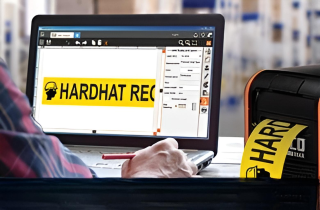
LabelForge's click to add feature ensures that adding text, symbols, shapes, and barcodes to a label is straightforward and easy.
You can also apply sequencing to text and barcodes.
LabelForge will automatically print the entire series of numbers without you having to re enter any information.
Back at the home screen, select Templates from the toolbar. Browse templates based on the width of supply: 5S examples, blank templates, LabPro, and Specialty templates.
Can edit templates with your own information or leave them as is and print.
Now select DLP Symbols. View the library of more than fourteen hundred symbols available for your label template.
For a complete description of these symbols, click on the Safety Symbol Library document in the Symbols folder.
The DuraLabel Toro also gives you the flexibility to create and save your own custom label templates.
To do this, select Programs on the toolbar. Then, select LabelWriter. Notice that DuraSuite and LabelForge are both accessible from this menu.
Once you're in LabelWriter, you will see a blank palette where you can insert text boxes by clicking the text icon and dragging.
Insert symbols by clicking the gallery icon and dragging straight to your custom template.
You can save the custom label template in My Documents, which is easily accessible from the Toro home screen.
Label draw gives you additional graphic capabilities.
The Label Spreadsheet allows you to input and view data on an easy to use spreadsheet application.
When files are saved as .csv files, they can be imported and merged into LabelForge templates.
Control panel contains audio and printer settings, as well as touchscreen calibration options.
For security, use to set a password lock on your Toro.
Displays the current installed printer information, and displays what is currently printing.
Displays preferences and a task manager.
Finally, Training contains how to's, label examples, manuals, and instructional videos.
On the top right of the Toro toolbar, you will find seven clickable icons: The D drive and the My Documents folder, the Printer Settings dialog box which is used when the ribbon type has been changed, to calibrate the loaded supply, or to manually trim a label.
The Supply Information icon displays the current printing supply that is loaded in the Toro.
The Help icon is a quick link to instructional videos, manuals, and how to's.
The capital T icon displays DuraLabel's contact information and the power button shuts down the Toro.
For more information, call 1-800-788-5572 or visit DuraLabel.com
.png)