How-To Clean Your DuraLabel Kodiak Industrial Label Printer
Video Transcription
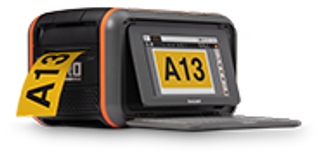
This video will show you how to clean your DuraLabel Kodiak Printer. Periodic cleaning will help prevent jams and keep your printer running smoothly. First, turn off the Kodiak and disconnect the power cord. Then lift Kodiak's lid to it's fully raised position.
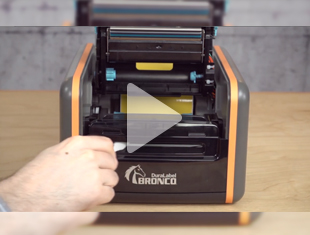
Unlatch the two print heads and lift them by their orange tabs until until they hold in their fully raised positions. Slide the ribbon cartridges out of place and put them somewhere safe. If the cartridges have ribbon loaded, you can rest the cartridges upside down to avoid getting dust on the ribbon. Unlatch the spring loaded feed roller bar, and let it rise out of the way.
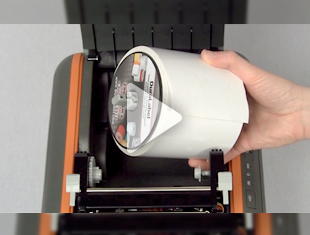
Turn your roll of label stock by hand to rewind any supply that is still feeding through the printer. This will expose all of the rollers in the base of the system. Open a cleaning swab or lightly moisten a soft cloth with isopropyl alcohol. Run the cleaning swab several times across the underside of each print head, paying attention to the green strip of heating elements and the shiny metal feeding guide.
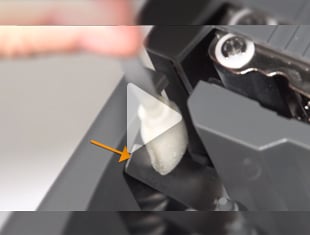
Then wipe the rubber rollers in the base of the printer. Start with the ones under the print heads, and then wipe the textured roller under the feed roller bar. Check the adjustable supply guides for any adhesive buildup, especially under the small white rollers, and clean them with the swab. Finally, raise Kodiak's touchscreen to it highest position.
Behind the screen, just above each end of the cutter slot you'll see two phillips screws. Theses screws hold the cutter faceplate on. Remove the two screws and place them somewhere safe Press the cutter faceplate downward to release it, and put the cutter faceplate somewhere safe. This will expose the cutter blades.
Using your cleaning swab remove any built up adhesive from the blades. If it's been a while since the cutter was cleaned, you may need to use a second cleaning swab here. Replace the cutter faceplate by sliding it up into place and reinserting the two screws. now that your Kodiak is clean, give it a minute or two to air dry.
Then you'll be ready to reload your supplies and get printing. If you have any questions about cleaning your Kodiak, or if you need other help using your DuraLabel printer, call for free technical support at 1-800-788-5572. Or visit us online at www.DuraLabel.com.
.png)