How To Create Arc Flash Labels
Video Transcription
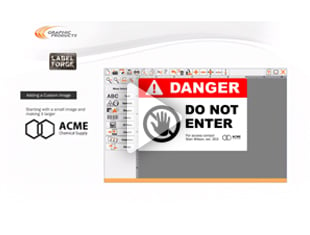
This video will describe how to create an arc flash label using the LabelForge PRO software. These labels can help your facility meet the requirements of the NFPA 70E standard for safe electrical work.
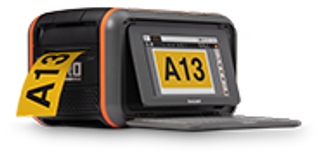
On Kodiak, click the Arc Flash button on the home screen to get started.
This module keeps an internal database of the equipment you've entered information for. To start a new entry in the database, click the New Label button. The Edit Record menu will slide out, and you can start making selections.
First, the label options let you choose a language, choose between the danger, warning, and caution label headers, and choose which project this label should be grouped in.
Next, the basic label information. Enter a unique equipment name, the equipment's nominal voltage, it's arc flash boundary distance, and the date of the arc flash risk assessment. In the PPE information section, you can choose to show either a PPE category from the NFPA 70E standard, or the calculated incident energy and working distance.
Then click the button for list of PPE, and check the box for each required element of protective equipment. You can sort the list by PPE category, by clicking on the category numbers here. You can also edit the list of equipment with the Add, Remove, or Edit buttons here.
At the bottom of the edit menu, you can enter the shock hazard information and the shock protection boundaries for your equipment.
When you've finished entering these details, save them into the program's internal database with the Save Database button here. As you enter more equipment information, the search function at the top of the screen will be helpful for finding a specific entry in the database.
To choose the dimensions and other formatting choices for your label, open the label settings menu here. You can choose a label template, sorted by size, as well as the font for your text.
Finally, you can toggle several options for the label's design. If your label stock has a printed header already in place, for example, turn off the header and stripe options.
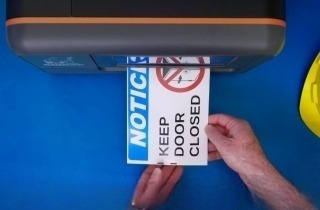
Once you've made all of your selections, you can save the label design for further customization with the Save Label button, or start printing right now.
.png)

.webp)
%20(1).webp)